
Your game data, one window. DxVisualizer is a Unity editor window for ScriptableObject-heavy projects: a catalog of your types by namespace, every instance of the type you pick, and the inspector for the asset you selected. You edit, reorder, and batch-process data without moving between the Project panel and the Inspector.
AI assistance: early versions were written by hand; current work pairs human-led design, architecture, and review with AI help on features, bug finding, performance, and docs.
Alpha: built for Wallstop Studios' internal use. There is no support commitment yet, and any release can break compatibility.
Documentation: https://wallstop.github.io/DataVisualizer/
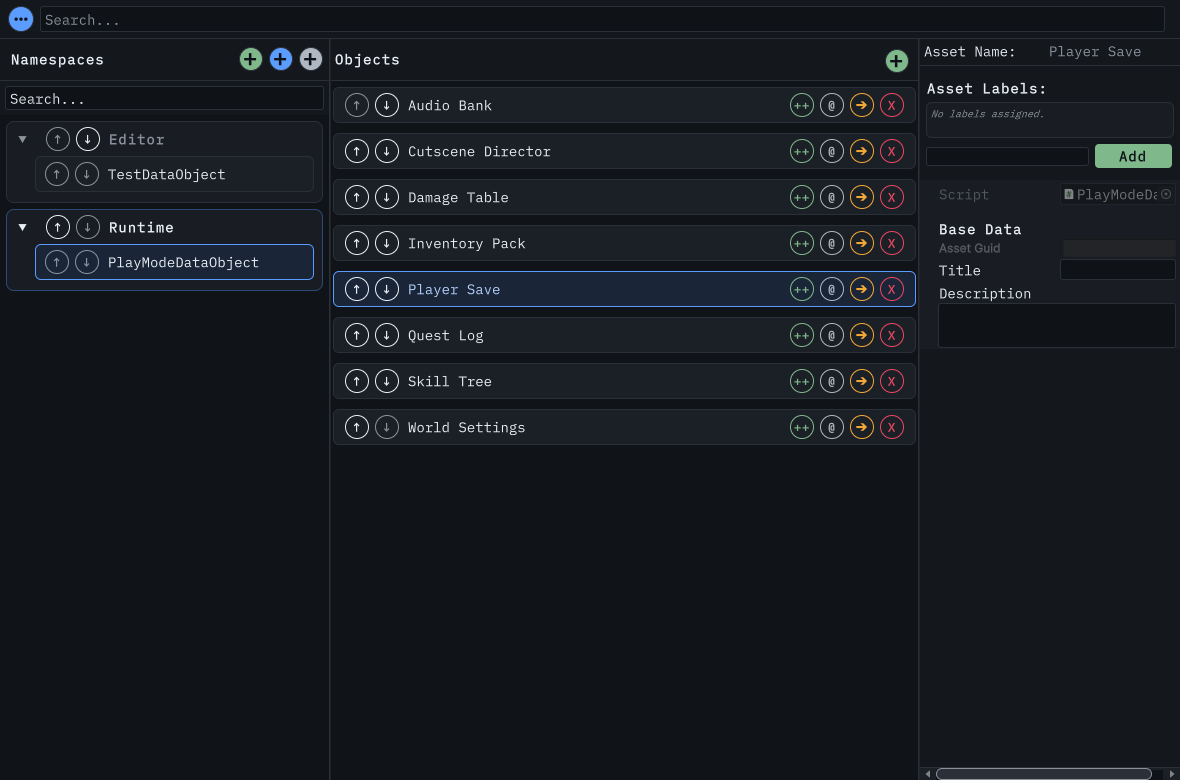
Captured from the live window by the docs capture pipeline.
DxVisualizer was called Data Visualizer until 0.2.0. Namespaces, the package name, saved state, and theme tokens are unchanged; see Migrating from Data Visualizer.
Unity 2021.3 or newer. No other package dependencies.
- Open Window → Package Manager.
- Select +, then Add package from git URL.
- Enter
https://github.com/wallstop/DataVisualizer.gitand select Add.
Each GitHub Release also carries a .unitypackage.
Open the window with Tools → Wallstop Studios → DxVisualizer and dock it next to the Inspector.
| Task | What the window gives you |
|---|---|
| Find | Search your ScriptableObject types by name, add a whole namespace at once, or scan a folder for assets you already have. Global search matches asset names, type names, GUIDs, and string fields. |
| Inspect | Edit the selected asset in the inspector you already know, including custom editors and Odin Inspector integration. |
| Organize | Reorder namespaces, types, and instances, filter by asset label with AND / OR clauses, and keep the arrangement across sessions. |
| Edit | Create, clone, rename, move, and delete assets in place, then run your own processors over all or the filtered instances of a type. |
- Getting started: install, open the window, and edit your first asset.
- Search and filtering: global search, the type filter, and label filtering.
- Managing assets: create, clone, rename, move, delete, and processors.
- Organizing your data: ordering, themes, persistence, and Play Mode.
- Extending the window: attributes,
BaseDataObject, processors, and custom inspector content. - Troubleshooting: missing types, hidden rows, processors, themes.
- Video walkthrough: a tour of the window, recorded before the rename.
No subscriptions, no paid upgrades, no feature-gated tiers. The full source is MIT-licensed, and every documented capability ships in the free package.
C# is formatted with CSharpier using the default configuration. Run it on changed files before you open a pull request, either through an editor plugin or the pre-commit hook.
Build the documentation with uv run scripts/build_docs.py; add --serve for a local preview. The driver reuses .docs-venv and checks pinned dependencies with uv. Python-only
hosts use pip; --installer pip selects that path explicitly. Both build paths keep strict link and configuration checks.
MIT.
Part of the Dx family with DxKit and DxMessaging. Built by Wallstop Studios, published by Ambiguous Interactive.