

Give your Android phone a task in plain language.
English · 简体中文
Ask Tapilot to open an app, find information on screen or work through a task across apps. You can add instructions while it runs, stop it, and review the screenshots and actions afterward.
For a first try: “Open Calculator and calculate 12 × 8.” Check the result on the phone, then open the execution report to see how Tapilot got there.
Tapilot operates your phone’s visible screen, so let it finish or stop the task before using other apps. Setup requires a supported vision-model connection and Android accessibility permission. Everyday use needs no ADB, Shizuku or root. This project is experimental; always check important results.
Powered by Midscene.
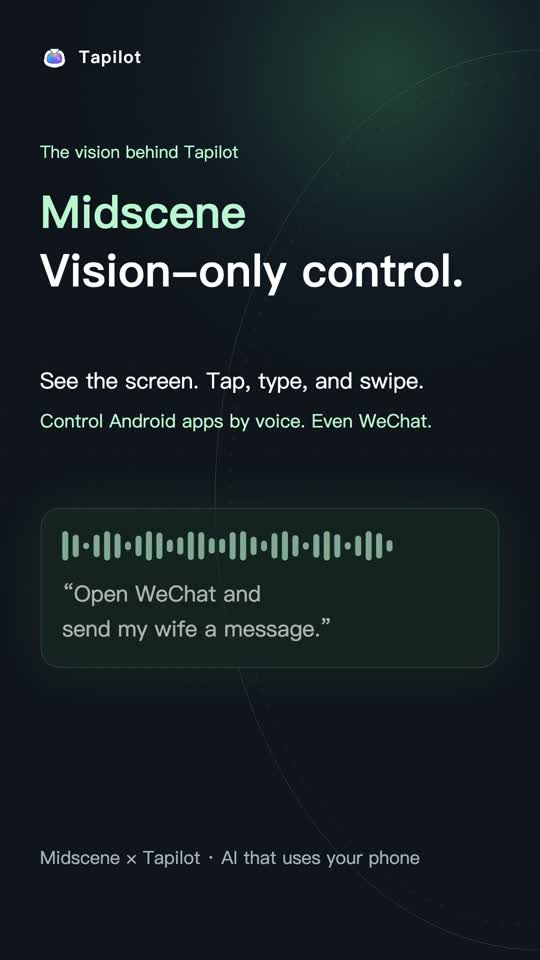
Watch the English demo · Approximately 78 seconds.
- Operate apps in natural language. Tap, swipe, scroll, type, launch apps and move between them using Midscene's screenshot-based understanding.
- Follow a task across apps. Keep plans and operation results, add a requirement while running, or explicitly stop and retry. Interrupted tasks do not replay automatically after an app restart.
- Check results on screen. Each phone operation ends with a separate screenshot check against the current requirements. Missing evidence remains unknown, and verified progress is retained for later steps.
- Inspect what happened. Open the Midscene HTML replay with screenshots, model plans, actions and errors; export it when needed.
- Talk to the phone. Optional Volcengine / Deepgram transcription and speech playback, with separate provider credentials and an automatic-read setting.
- Control it over Wi-Fi. The local Tapilot plugin connects a paired computer to the phone over pinned TLS. Wireless use requires an unlocked phone and exclusive control, without ADB or USB.
Select Take over while a task runs. Wait for the stopped confirmation before using the phone; an action already dispatched may still finish while stopping. The handoff card offers Return to app and Continue task. Continuing keeps the saved task context and asks the agent to inspect the current screen before acting. It does not resend the original task as a fresh request. A saved composer draft is retained. A task waiting for your answer also offers these controls. Leaving the chat after a confirmed handoff does not restart the task. Tasks stopped by opening the floating conversation panel also show the handoff card.
Requires an arm64 Android 11+ phone and a supported vision model. Download the Beta APK or use the GitHub release fallback.
- Install the APK, open Tapilot and enable Tapilot device control in Android Accessibility settings.
- In Tapilot settings, configure an HTTP or HTTPS vision-model API, or choose the existing ChatGPT (SIWC) connection option where available. Fill credentials on the phone.
- Start with a simple visible task, such as opening Calculator and computing 12 × 8. Inspect the actual screen and execution record before relying on the reply.
The composer offers automatic execution (YOLO), confirmation for critical operations, or confirmation for every phone operation. New installations default to YOLO. Choose the confirmation mode appropriate to your task before sending it.
The first-task guide shows whether a model is configured and device control is connected. It can fill a Calculator example into an empty composer; you review and send it yourself. Existing drafts and attachments are retained. Configuration is not a successful connection test: the task exercises the model, screenshots and actions. The guide stays available after a failure, and is dismissed after a verified phone task succeeds or when you choose Skip guide.
For a self-hosted model on your LAN, use its OpenAI-compatible base URL, such as
http://192.168.1.100:8000/v1, and a supported vision model. The address must be
reachable from the phone; localhost refers to the phone itself. The app still
requires an API key; if your server does not require authentication, enter a
non-empty placeholder such as local. HTTP sends API keys, messages and screenshots
without encryption. Use it only on a trusted network; prefer HTTPS otherwise.
In Settings → Voice input, choose a provider. The app includes links to its console and official setup guide:
- Volcengine: sign in and complete identity verification, enable Streaming Speech Recognition 2.0 in Doubao Voice, then create a key in API Key management. Use a Doubao Voice API Key, not an Ark model key or legacy APP ID. Official guide.
- Deepgram: sign in to the console, select a project, then open Settings → API Keys → Create a New API Key and grant transcription access. Copy the secret when created; it is only shown once. Official guide.
Paste the key into the app and select Check connection to save and verify it.

Midscene supplies the visual planning, locating, action execution and reports. Tapilot supplies the native Android UI, device adapter, model transport, saved conversations and task lifecycle. The embedded Node.js worker runs on the phone; model inference uses the configured remote provider. On-device orchestration does not mean offline inference.
Accessibility is the device execution layer, not the visual locator. Native text editing can use the focused editable accessibility node, and app launch uses Android's launcher catalogue. Custom-rendered inputs and protected screens can therefore remain unsupported even when their pixels are visible.
Use Node.js 24, pnpm 12.4.1, JDK 17, Android SDK Platform 35 and Build Tools 35.0.0.
Set JAVA_HOME and ANDROID_HOME. See CONTRIBUTING for the
complete host prerequisites and signing setup.
pnpm install --frozen-lockfile
npm ci --prefix plugins/tapilot
node plugins/tapilot/scripts/patch-midscene-zod.mjs plugins/tapilot
npm ci --prefix tests/midscene
node plugins/tapilot/scripts/patch-midscene-zod.mjs tests/midscene
pnpm build:android
pnpm check:quick
The local APK is app/build/outputs/apk/beta/app-beta.apk. It uses this machine's
development signing certificate, which cannot update a differently signed app.
Production signing is configured separately. ADB may be used by developers to
install and test; it is not required for Tapilot's runtime automation.
| Directory | Purpose |
|---|---|
app/ |
Native Android UI, credentials, device actions and lifecycle |
node-runtime/ |
Embedded Pi agent, Midscene runner and deployment dependencies |
packages/android-accessibility/ |
Midscene adapter for Android AccessibilityService |
plugins/tapilot/ |
Computer-side Wi-Fi control plugin |
tests/midscene/ |
23 E2E cases and opt-in device fault fixtures |
Run pnpm check for the full local test/build gate and pnpm check:security for
dependency audits. Device-backed E2E is separate; 23 authored cases do not imply
23 verified passes. See the E2E guide and evidence and
contribution guide.
If the execution process exits before producing a report, Tapilot shows its exit code and available failure diagnostic. An expired preloaded process is restarted only before any test or device RPC has begun; a running phone task is not replayed.
Historical device runs do not establish a pass for the latest source.
- A model can misread a screen, infer an unobserved fact or give an incorrect completion answer. The E2E ledger distinguishes repaired cases, remaining failures and untested builds. Verify important outcomes from the actual screen.
- Locked or protected screens, OEM background restrictions and inaccessible custom text inputs can stop execution. Only arm64 devices are bundled today.
- Screenshots and task content are sent to your selected model provider. Optional ASR/TTS sends audio or reply text to the selected speech provider. Account tokens and API keys stay in Android Keystore-backed storage; this does not make model requests local or prevent provider-side processing.
- Reports contain screenshots, prompts and model output. Review them before sharing. The phone automatically prunes older reports to keep at most 20 files and 200 MB, always retaining the newest report even if it exceeds that size. Export reports you need to keep before running many more operations. Exported reports and computer-plugin data have their own lifetimes.
Read PRIVACY.md for data handling and deletion, and SECURITY.md for transport, credential storage and vulnerability reporting.
Midscene is the foundation of the visual automation, Android adapter integration, Test Runner and execution reports.
Thanks also to Pi for the conversation/tool loop, Node.js and Termux for the Android runtime, Android Jetpack Compose for the native UI, and the Model Context Protocol for the computer plugin. See CREDITS.md for more upstream projects, license identifiers and redistribution work still required before release.
Starting with 0.1.9, builds offer Settings → Background screen (Experimental) → Use for chat tasks, off by default. After shell authorization, phone-side pairing and overlay permission, normal chat requests can open and operate installed apps on a separate screen while the main screen remains available. The borderless floating preview shows the actual captured screen. Use the task's Take over action before manual input, then explicitly continue with a fresh observation. Closing the preview or disabling the setting stops the task and releases the display. Connection failures never redirect an ongoing task to the main screen.
Connection status and optional recovery remain visible in settings. Compatibility trials and manual connection methods are under Advanced. Display dimensions and density follow the current phone screen within a bounded capture budget. App compatibility, Unicode input without display-scoped accessibility, protected pages and screen-off use remain limited. The feature remains experimental and requires explicit shell authorization before use. See setup and limits.
MIT. Third-party components retain their own licenses. See CREDITS.md and redistribution notes.